Myriad of Multiple Monitors
There are three main components to the man-machine interface regarding our computers -- the monitor(s), mouse, and keyboard.
Through these components, we can control and provide input (typing and clicking) and receive output (reading and looking). Printers, speakers, and microphones are also input/output methods though I consider these secondary and more about communicating with other humans rather than commanding the machine itself.
And while we can choose among several models and options for the monitor, mouse, and keyboard, cheap to expensive, the monitor arguably offers the most choices. I don't want to undercut the importance of a good keyboard and mouse, but I'd say the monitor is probably the most important in terms of selection, setup, features, ergonomics, etc. There's a ton more choices and it's easy to get it wrong.
So in this article I'll discuss the myriad of modern monitor choices and help you make an optimum decision on what to buy.
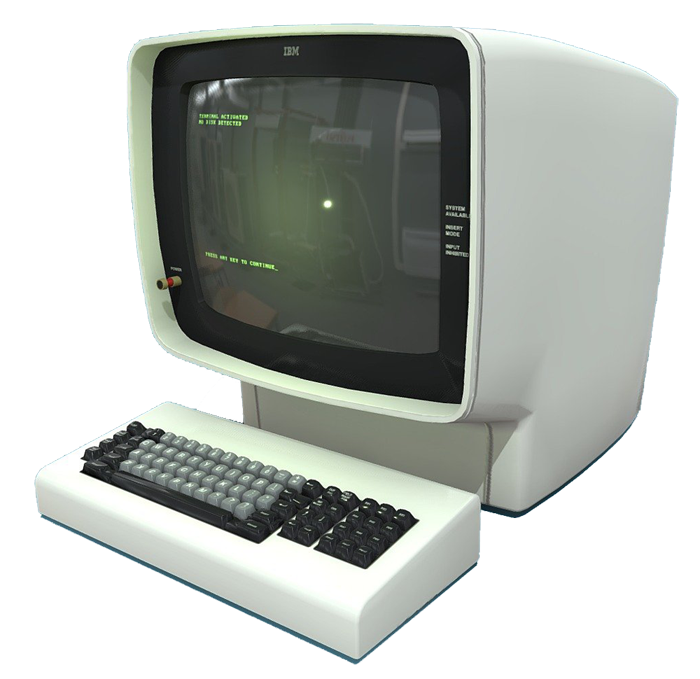
IBM terminal from the 1970's
State of the art
I would have loved to go into the history of monitors and maybe I'll write a separate piece on that sometime. But for this article, I'll skip the usual history lesson and focus strictly on modern computer monitors, some very cool ways you can boost your productivity, and have good stress-reducing ergonomics. What a deal!
For many years, nay, decades, people were using only a single monitor with their computer. But around 2010 or so, I started seeing more clients using dual-screen setups. Two monitors side by side.
That's an obvious productivity improvement since you can see twice as much without moving windows around, minimizing, maximizing etc. But for some clever folks, even dual-screens are bush league today, preferring more advanced set ups.
Let's explore the pros and cons of multiple multi-monitor installations, shall we?
Two is twice as nice
Pictured here are two monitors placed in a plane making contact in the middle (what I call the "bezel gap"). Lots of additional screen real estate and all for only the cost of a second monitor. Nearly all non-laptops today can natively support two monitors so it's a cheap and easy productivity boost. Chalk one up in the pro column.
Sometimes, people will angle each monitor inward a little bit so that the left and right edges aren't quite so far away from the eyes. But what some people also discover is that having that monitor divide, the bezel gap, where the monitors are touching, directly in the forward line of vision, isn't pleasant.
People instinctively compensate by parking their windows wholly on either the left or right monitor and never spanning the bezel gap -- unlike the guy in this picture, who is spanning it. And now he has that distracting bezel gap bisecting that middle window. Not pretty.
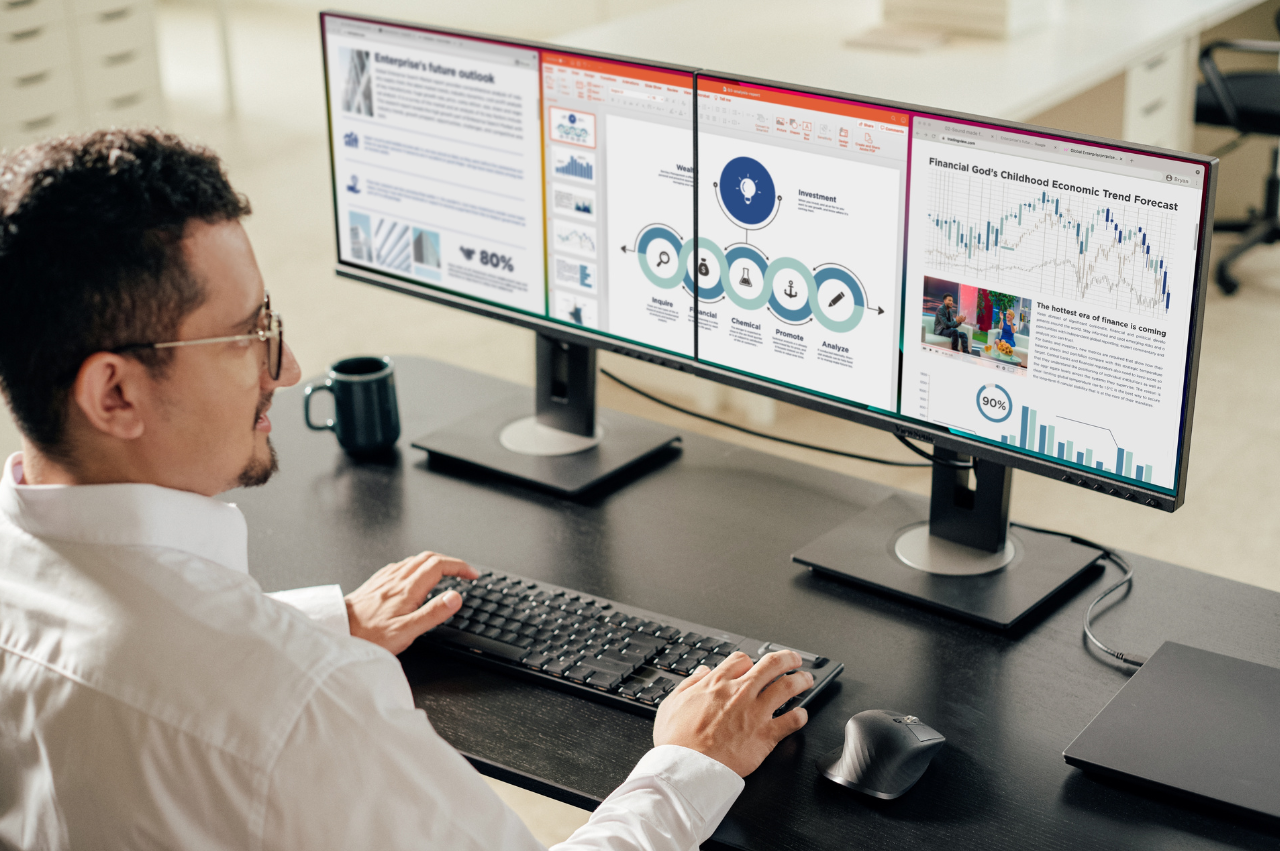
Man using dual monitors side by side
That's kind of a shame because that middle zone, which includes the bezel gap, is the most valuable piece of real estate you have.
By placing your various windows entirely on the left or right, you are forever having to turn your head or your eyes to work. Not everyone is bothered by that, but many are. And some people, once they see how good it is not have that bezel gap, get salty realizing they could have fixed that years earlier.
Case in point
My wife, a research and teaching professor of mathematics who is 100% WFH, is a great example. For years she frequently suffered neck stiffness, dizziness once in a while, and the occasional headache sitting at her computer. But only recently while studying the effects that ergonomics has on computer use did I happen upon the idea that her dual monitor setup might be the culprit.
I bought her a single 34 inch ultra wide curved monitor (we'll get into that further down) to replace her dual-screen setup. It was magical. Her neck and associated discomfort vanished almost overnight. It was life changing!
So, how to do that?
Make it a three-peat
If two monitors are nice, then three must be even nicer! And in some ways they are!
Here are three monitors arranged so that the left and right (wing monitors) are curved inward. This brings the distant, exterior edges closer to your eyes which increases comfort. More on eye distance further down.
Two big advantages here: 1) You now have 3x the viewing real estate, and 2) That super valuable screen space in your forward line of vision is no longer marred with a black vertical bezel gap.
That means you can park your most important windows directly in front of you. Nice.
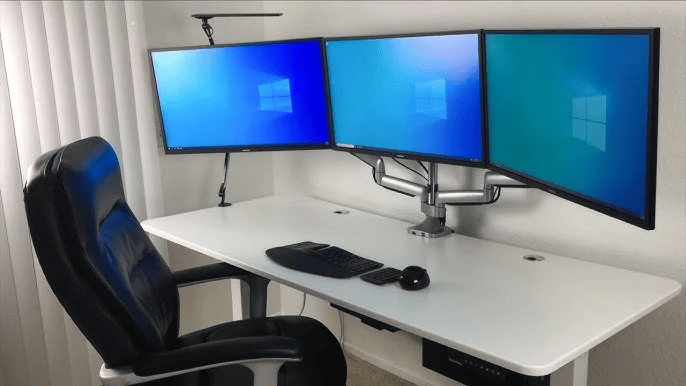
Desk with three computer monitors
Yes, you do now have two black vertical bezel gaps, but they are off to the left and right using less valuable screen estate and you are unlikely to span them with a single window. This setup is becoming a bit more common as it can be achieved with three regular, inexpensive monitors.
Having three monitors, each on their own stands parked on your desk, will eat up valuable desk space. But as shown in the picture here, all three monitors are floating above the desktop, connected to a common mounting point that is clamped to the back edge of the desk and thus consuming no valuable space. Better yet, these articulated floating monitor mounts can be moved around on multiple axis, giving a range of positioning not even possible with the included monitor stand.
A union with no internal borders
What if you could have a double or triple wide monitor but with no connecting borders (bezel gaps) between the monitors? Just one luxurious, ultra wide slab of screen instead of two or three separate screens touching each other?
You could park windows anywhere you wanted with no bezel gaps splitting them up. Would be pretty cool, yes?
Here are two monitors that belong to the "ultra wide" class. The one showing the peacock is a 34 inch monitor that is about 1.8x the width of a standard single monitor. So, very nearly 2x width, like having two monitors.
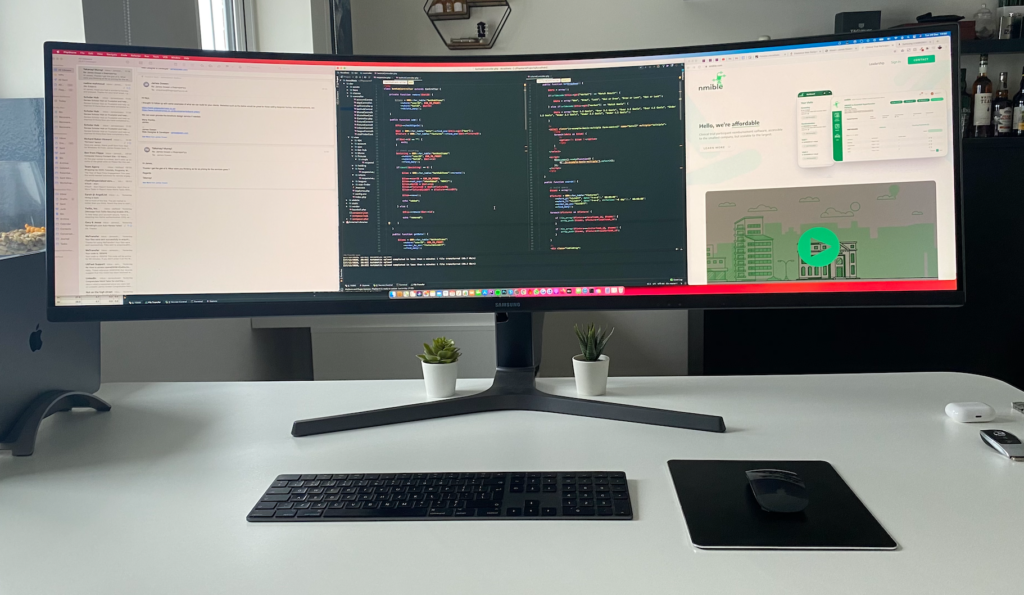
The other is a 49 inch monitor that is about 2.7x the width of a standard single monitor. In this case, pretty close to 3x monitors in width.
The 49 inch monitor is equivalent in size and resolution to two 27 inch QHD (2560 x 1440) monitors. That is sometimes called DQHD and has a resolution of 5120 x 1440 pixels. That's a lot of pixels for one monitor.
In terms of total pixels over a bog standard FHD (1920 x 1080) monitor, the 49 inch model has just over 3.5x more combined horizontal and vertical resolution. And no bezel gaps!
With all this single-pane real estate, you might think that arranging your windows just right could start to become a chore.? But Windows has you covered.
Win 10 and even more so Win 11 has a thing called snapping. Click and hold the title bar of most windows then drag that window to a corner or edge and you'll see a number of layout templates presented.
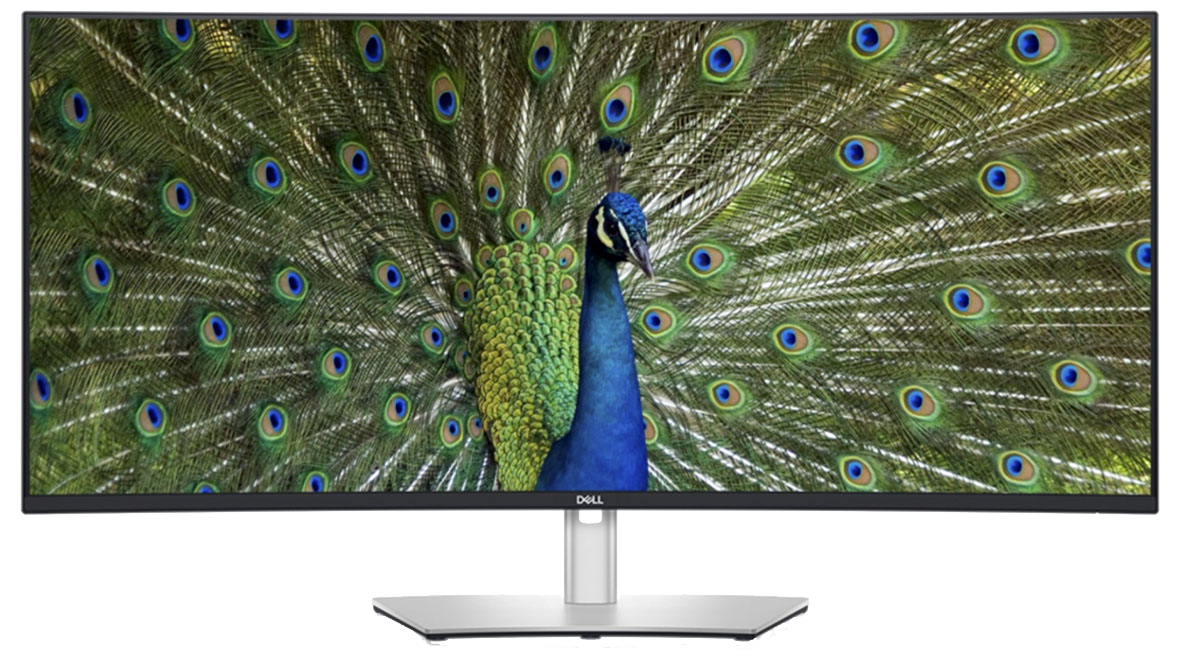
34 inch class ultra wide monitor
49 inch class ultra wide monitor
This corner and edge snapping feature is terrific for making the most of multiple monitors or, especially, a single ultra wide. Experiment and you'll figure out how it works.
Another cool feature of Windows 10 and 11 are virtual desktops. This feature multiplies your desktops by letting you swap between fully loaded and arranged desktops. Each virtual desktop remembers the size and location of all open windows. A hot key lets you switch between them. It's an awesome screen management feature. And when used with corner and edge snapping, even more so.
Show me
I did mention further up something about eye distance. So, yeah, let's get into that now.
A single monitor is pretty easy. Even with a larger 27 inch model, most every point on the screen is reasonably close to being the same distance from your eyes.
But when you add additional monitors or consider an ultra wide, especially a crazy wide 49 inch model (that's over four feet wide!), well then, the pixels near those outside edges will be significantly farther away from your eyes than the pixels in your forward line of sight. It's enough to mess with your glasses or frequently refocusing your eyes. Fonts and icons at those extreme edges can also appear smaller, given that extra distance.
This is why ultra wide monitors tend to be curved. By curving the monitor inward, that brings the extreme left and right edges closer to your eyes, reducing the angular distortion and stretching that you would otherwise perceive on a flat panel, making it easier to take in the entire screen.
Nerd Alert: I'm gonna geek out for a minute. But it's important you understand how a curved monitor fixes this.
Monitor Radius
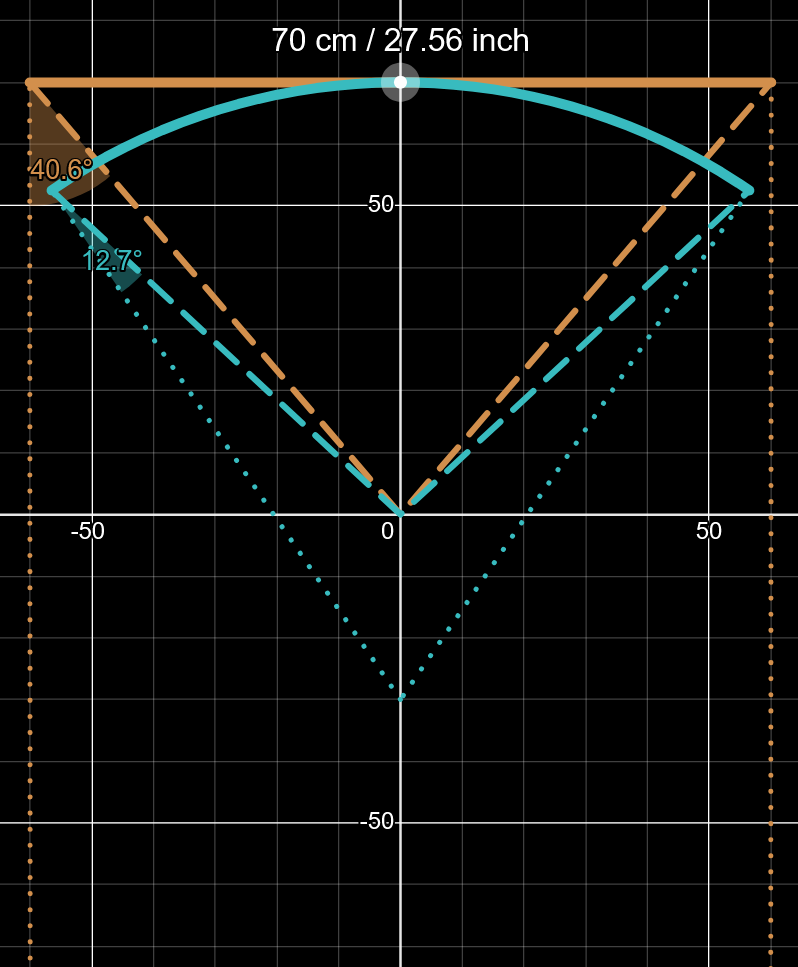
The adjoining graph illustrates my point about eye distance to screen. This graph is a top down "birds eye view" of your monitor and where your eyes are.
Definitions:
- The solid yellow line represents a flat, non-curved panel.
- The solid blue line represents a curved panel with a radius of 1 meter.
- The zero in the middle is where your eyes are.?
- The dotted yellow and blue line is a vector perpendicular to the point of intersection on the panel
- Each small square is 10 cm on a side, or about 4 inches.
OK, let's dissect this one by one. If it's been a while, recall that the radius of a circle is the distance between the circumference (the panel, in this case) and the center point.
The dashed lines represent the distance from your eyes to the left and right edges of the screen. Notice how much farther the edges of the flat screen are from your eyes compared to the curved screen.
The edges of the curved screen are notably closer, about 6 to 7 inches, which provides a smoother experience when eye scanning from left to center to right and back. Your eyes don't have to refocus as much and, if you wear glasses, your vision will be less blurry overall.
Graph showing geometry of flat and curved
monitors and their focal points
At the point where the dotted blue lines converge (toward the bottom) is where all pixels on the monitor are the same distance away. That's the perfect viewing point.
In English, please
On a curved monitor that has a 1 meter (~39 inches) radius, if you sat with your eyes exactly 1 meter away from the screen, then every point/pixel would be exactly the same distance away (well, horizontally anyway, where it matters the most). No refocusing of your eyes, and if you wear glasses, they would introduce no distance-based error. That is viewing bliss.
Now look at the dotted yellow line. They're both heading straight down toward infinity and will never converge.*
* OK, math nerds, let's not get tangled up in Euclidean vs. spherical spaces. I'm just talking about monitors here.
It's not necessary to achieve perfectly equal distance between your eyes and all points/pixels on the monitor. It's enough to just get close. And that's what a curved monitor with a 1 meter radius can achieve. My viewing distance is 70 cm from eyes to center of monitor. A client of mine for whom I recommended a curved monitor has a 90 cm viewing distance -- only 10 cm shy of perfect.
Where to buy
You can by curved monitors at Best Buy, Microcenter, Amazon, and similar stores.
Ultra wide curved monitors tend to be favored by gamers with money to spend. They aren't cheap, costing anywhere from $800 (on sale) on up to $2,000 or so -- and some cost even more depending on specs.
But my attitude is this: If you work all day, every day on a computer and want the ne plus ultra of viewing experience, then it's worth it. So is having a decent computer, a decent office chair, proper posture, a good desk, and all the other ergonomically optimal things you can do.
More on ergonomics here.